 View example
01 / IMAGE
Diamond ring
QuickAds client archive
Bring in a product feed. Match photos, names and prices to a branded template, then review the ads before you export.
Opens the QuickAds app. Sign in to add a catalog.
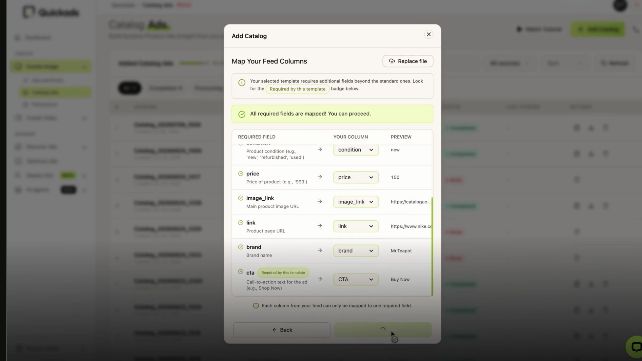
Recorded in QuickAds · Sound off
Watch the full walkthroughPhotos, names, prices and variants. Review the details together before you export.

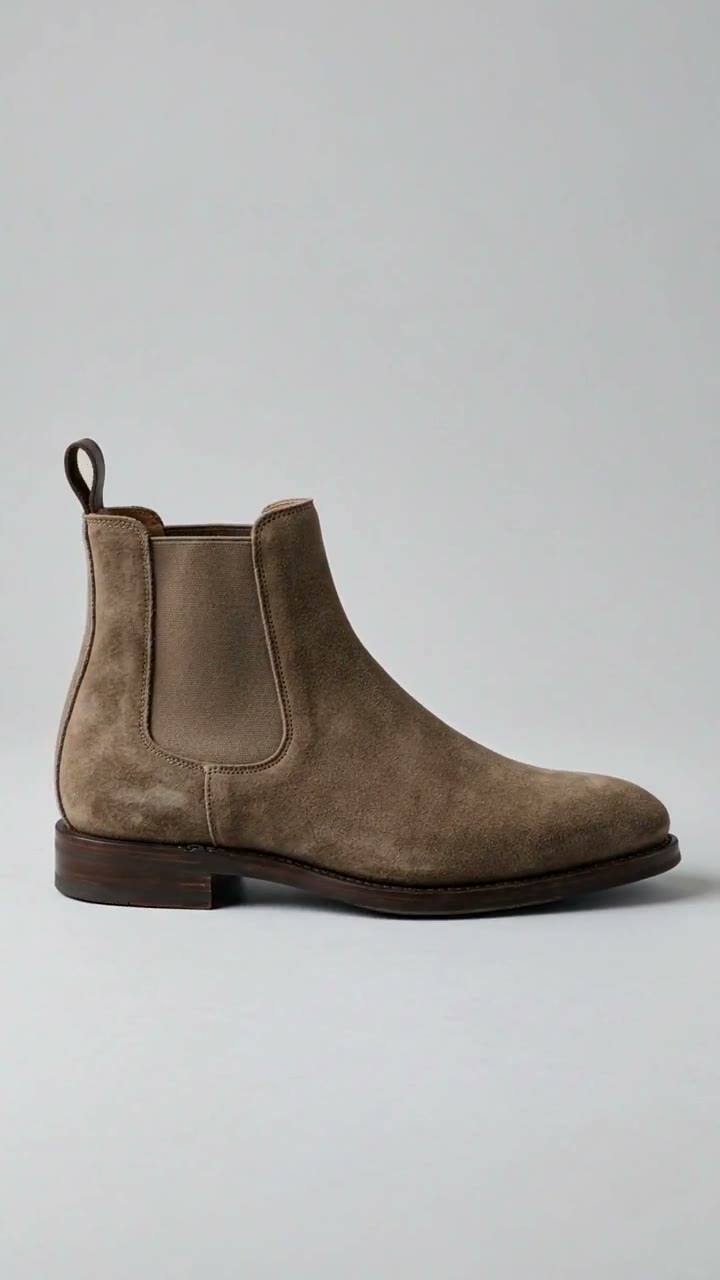

See how product photography, typography and selling details work together in a finished frame.
View exampleQuickAds client archive
 View example
QuickAds client archive
Play product videoGenerated test product
Client work is from the QuickAds archive. Any pictured offers are historical. The footwear clip uses an invented product.
Explore product videoA new collection, a sale and a design test need different decisions. Choose a starting point.
A new range brings different shapes and longer product names. Choose a layout that leaves enough room for both.
Illustrative layout · Sample productKeep the product visible beside the offer. Review which products qualify and update any price printed inside the artwork.
Suede Chelsea boot
Illustrative layout · No live offerTry a different background or headline across the same products. Keep the audience and campaign conditions comparable.
Your product data fills the template. Your ad platform chooses which product to show.
Start with a feed URL, a CSV or a suitable category page. Check the imported records.
Match the photo, name and price to the corresponding spaces in the template.
Choose an image, motion or video template and apply the brand treatment.
Try a long name, an unusual crop and a different variant. Watch the whole video before approving it.
Review the catalog and campaign status in the ad account before launch.
Check the creative requirements for each destination.
A template can look right on a short name and break on a long one. Check that labels stay readable and that the price belongs to the exact colour or size shown. Start with a few representative products before applying the design to the range.
A feed update can leave old details inside the artwork. Review the affected products, then regenerate and export the creative that needs updating.
Connected URL feeds can show added, changed and removed products. A CSV is a snapshot; import a fresh file when its data changes.
Example SKU / BOOT-024
Example values. No live product data is connected to this preview.
Start with the assets available and the detail a shopper needs to see.
Use a still when the product can be understood at a glance. Keep the crop clear and the selling detail readable at mobile size.
Source: product photoAnimate the layout around the existing image. Leave the name and price on screen long enough to read.
Source: product photoUse the product's own footage in a video template. Review the full clip for changes to shape, colour, labels or materials.
Source: product footageNeed new footage? QuickAds also offers managed product-video production. Decide which products need it before commissioning a batch.
Read the product video guideChoose the guide for the data or destination you are working with.
Branded creative, product sets and the Facebook / Instagram handoff.
02Product titles, stock, prices and clean images for Merchant Center.
03CSV exports, variant mapping and what to update when products change.
04Prepare product data, images and video for TikTok Ads Manager.
05Choose the SKUs, review product accuracy and prepare the clips.
Inputs, formats and what happens after export.
A catalog ad uses a product record to supply details such as the image, name, price and link. The advertising platform chooses which product to show; the creative template controls how the product appears.
Have product photos, names, prices and links ready, with a clear identifier for each product or variant. Check a few records against the store before importing a full catalog.
Motion can animate a template around an existing photo. A video template can use a product's own footage. QuickAds also offers managed production of new product footage; choose the workflow that matches the assets available.
Check the longest names, the smallest products in frame and the variants most likely to be confused. For video, inspect the whole clip for changes to shape, colour, labels or materials.
A promotional social design may need a separate version. Google requires a clean main product image without added prices, calls to action, promotional text or superimposed logos.
An export does not confirm that an ad is running. Check that the destination accepted the feed, that the correct products are selected and that the campaign has the intended budget, dates and status.